
The dashboard consolidates timekeeping information onto one screen, with options to view data as weekly, monthly or yearly totals.
To adjust the view, tap the icons in the upper-right corner:
- The
 icon sets the dashboard to Weekly view.
 - The
 icon sets the dashboard to Monthly view.
 - The
 icon sets dashboard to Yearly view.
 icon sets the dashboard to Weekly view.
 icon sets the dashboard to Monthly view.
 icon sets dashboard to Yearly view.
The dashboard provides alerts for missing time entries, time entries with errors and time entries that are incomplete:
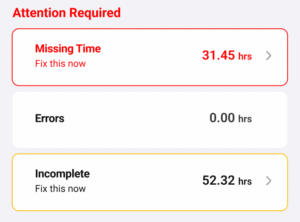
Other information available on the dashboard includes summaries of the total work hours for a selected view, a breakdown of how much of the work is billable and non-billable, your daily work load average, and your TimeScore.
Note: For information on how TimeScore values are calculated, see TimeScore.
To fix any issues with time entries, tap on either the Missing Time or Incomplete buttons. The sheet opens, showing a list of all incomplete or missing time entries.
Note: The value for Missing Time is calculated relative to your set Daily Goal.
Tap a time entry to edit and correct any empty fields. Tap in the upper-right corner to add time entries to create new time entries and fill in the gaps.